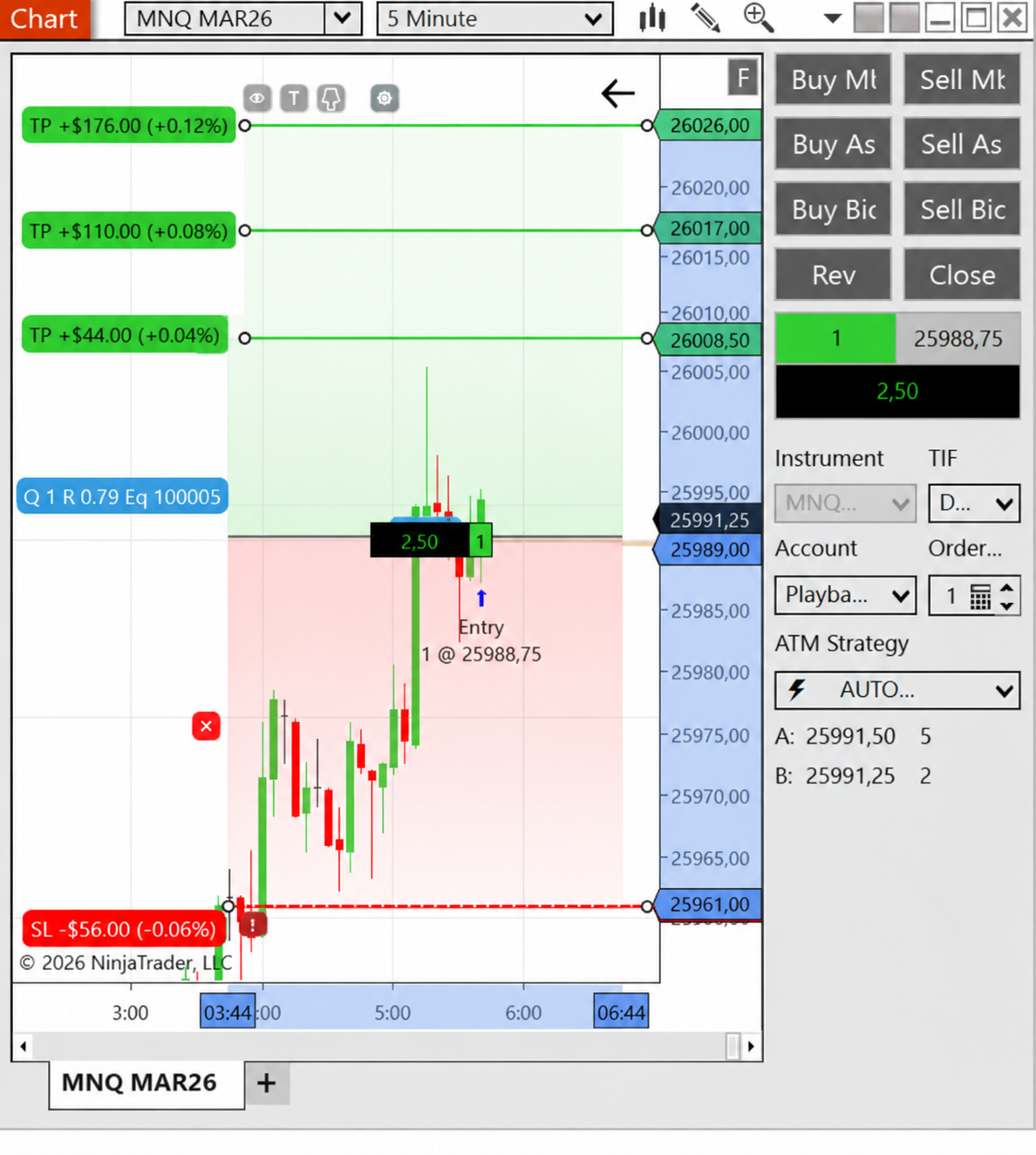
Multiple Take Profits (1–4)

TradeControl Pro lets you split a position across one, two, three, or four Take Profit (TP) levels. Each target closes its assigned quantity if its order fills. For example, an eight-contract position can close two contracts at each of four prices.
These are profit targets. The SL control still sets the stop-loss side of your trade.
Set up your targets
Section titled “Set up your targets”- In the Trade tab, set your position size. Each active target needs at least one contract: four targets require a quantity of at least four. In risk-based sizing, this means the calculated quantity, not the cash amount or percentage you enter.
- Keep TP enabled and choose 1, 2, 3, or 4 under Targets. Choices that require more contracts than you have are disabled.
- Turn on Show TP Panel to open the Profit Targets panel beside the Trade tab.
- Move the target lines on the chart to the prices you want. Check each row’s Price, Qty, and Allocation in the panel.
- Choose your quantities manually, or click Equal Split for an even starting point.
Show TP Panel only opens or closes the editor. Turning it off keeps your target setup. Use the TP control to enable or disable the target leg; do not turn TP off just to hide the panel.
Choose how much closes at each target
Section titled “Choose how much closes at each target”| Column | What it means |
|---|---|
| Price | The target’s price on the chart. |
| Qty | The number of contracts assigned to that target. |
| Allocation | That quantity as a percentage of the whole position. |
For an unlocked TP, edit Qty or Allocation, then press Enter or leave the field to apply it. Press Esc to discard an unfinished edit. TradeControl adjusts the other unlocked quantities to keep the total equal to your position size. Check the full table after an edit.
Quantities are whole contracts. If you enter a percentage, TradeControl converts it to a whole-contract quantity, so the displayed percentage may change. Every active target must retain at least one contract.
For example, with 8 contracts and 4 targets, you could use 4 / 2 / 1 / 1. That means 50% at TP1, 25% at TP2, and 12.5% at each remaining target.
Lock a target’s quantity
Section titled “Lock a target’s quantity”Each TP row in Profit Targets has a padlock button with Locked / Unlocked states. Click it to protect that target’s assigned contracts, or click it again to unlock them.
When a TP is Locked, its Qty and Allocation fields cannot be edited. Redistribution operations also cannot add contracts to it or take contracts away from it.
The padlock protects the quantity, not the TP price. You can still move its line on the chart. Its price continues to follow the Linked / Free mode.
For example, with 10 contracts and TP2 locked at 2, those two contracts stay assigned to TP2. The other 8 contracts are available for the unlocked targets.
- You cannot remove a locked TP by reducing the target count. Unlock that TP first.
- If locked quantities use the whole position, unlock a target or increase the total before assigning contracts to other targets.
- When the total quantity changes, the locked contract count stays the same. Its displayed percentage may change because it is calculated against the new total.
- Inactive TP rows stay empty. Clicking their padlocks does not fill them with zeros.
Use Equal Split when you want an even allocation
Section titled “Use Equal Split when you want an even allocation”The Equal Split button is below the target rows. It keeps locked quantities unchanged and distributes the remaining contracts as evenly as possible among the unlocked TPs. With all targets unlocked:
| Position size | Targets | Quantities after Equal Split |
|---|---|---|
| 8 | 1 | 8 |
| 8 | 2 | 4 / 4 |
| 8 | 3 | 3 / 3 / 2 |
| 8 | 4 | 2 / 2 / 2 / 2 |
Any leftover contracts go to the first eligible unlocked target rows. Equal Split changes quantities, not target prices, and does not submit a trade. Click it when you want an even split of the available contracts. You do not need to click it after a manual edit; doing so replaces the custom allocation of the unlocked TPs.
Changing the target count does not automatically make all quantities equal. Each active target still needs at least one contract, and locked quantities must be preserved. After changing the position size or target count, review the allocation again. If a change conflicts with a lock or leaves too few available contracts, unlock a target or adjust the total before continuing.
Exporting presets
Section titled “Exporting presets”The exported preset file excludes multiple-TP settings: target count, target prices, contract allocation, and locks. Exporting does not remove those settings from your local setup. See Preset Management.
Review before submitting
Section titled “Review before submitting”Check the chart prices and make sure the target quantities add up to the position quantity. Resolve any field error before continuing. Then use Submit and, if enabled, Confirm before sending, as described in Trade Execution.